 DM Monitor
DM Monitor manual
Install it once on the church computer, then every musician adjusts their own in-ear or wedge mix from their phone.
5 minutes
I'm a musician
Get the app on your phone and adjust your mix.
Setup
I'm the sound tech
Install, choose what each musician sees, keep it safe.
What DM Monitor is
DM Monitor runs on one computer (a Mac, a Windows PC or a Raspberry Pi) on the same network as your Yamaha console. Musicians open it on their phones and move only the sends of their own mix — the same thing the tech would do on the console, but without asking.
- The app adjusts the mix; the sound still reaches the musician through their in-ears or wedge, as always.
- Nothing is installed from an app store on the phones — it's a web app you add to the Home Screen.
- Works with the Yamaha DM series (and TF, CL/QL, Rivage). DM Monitor is not made or endorsed by Yamaha.
What you need
- A Yamaha console with network control on (the same network as the computer).
- One computer that stays on during rehearsals and services: Mac (macOS 12+), Windows 10/11 (64-bit), or Raspberry Pi 4/5 with the 64-bit Raspberry Pi OS.
- Wi-Fi where the phones can reach that computer. Ideally the computer is wired to the same switch as the console.
Install on a Mac
- Download the .dmg from the download page (Apple Silicon for M1/M2/M3/M4, Intel for older Macs).
- Open it and drag DM Monitor to Applications.
- The first time: right-click the app → Open → Open. (The app is free and not signed with a paid Apple certificate; macOS asks once.)
- The Admin opens in its own window and a DM Monitor icon appears in the menu bar. It starts by itself when you log in.
Install on Windows
- Download DM-Monitor-Setup-…-win-x64.exe.
- Run it. If you see “Windows protected your PC”: More info → Run anyway.
- Accept the admin prompt — the installer opens the firewall for DM Monitor so phones can connect.
- DM Monitor opens and stays in the system tray (next to the clock). It starts when you sign in.
Install on a Raspberry Pi
A Pi is the most reliable option: a small box next to the console that nobody turns off by accident. Use a Pi 4 or Pi 5 with Raspberry Pi OS 64-bit (Lite is enough), wired to the console's switch.
tar xzf dm-monitor-pi-<version>-arm64.tar.gz
sudo ./dm-monitor/install.sh --hostname dm-monitor- Musicians then use
https://dm-monitor.local:8080. - It runs as a service: starts with the box and restarts by itself.
- Logs:
journalctl -u dm-monitor -f· Go back one version:sudo dm-monitor-rollback. - If the box gets a new IP address, restart it so the certificate covers the new address.
First setup
- Open the Admin (the app window, or
https://<computer>.local:8080/admin). First login: admin / admin — change it in Security & backup. - Overview shows the console once it's found. Not found? See Network.
- Mixes: hide the mixes musicians shouldn't pick (matrix, FX, etc.) and set up each musician's mix — see Mixes.
- Share the app link with the team (Overview → Share setup guide, or tray menu → link for musicians).
Updates
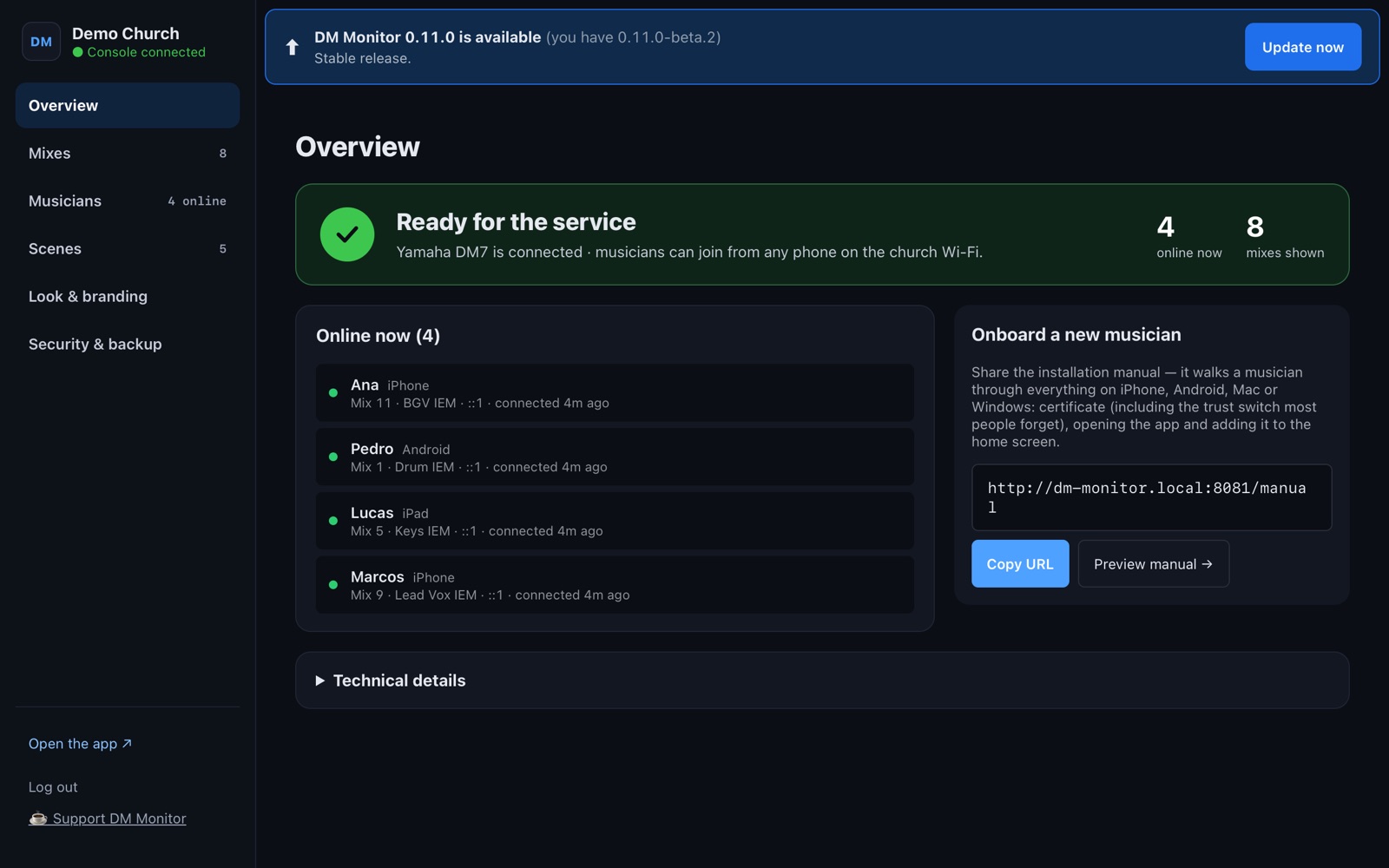
DM Monitor checks for new versions by itself. When one is out, the Admin shows “DM Monitor x.y is available → Update now” (and the Mac/Windows tray says so too).
- It never updates on its own — you press Update, ideally not during a service. Connected musicians drop for about 20 seconds and reconnect by themselves.
- Every download is checked before installing; if anything fails, the current version keeps running.
- Want early versions? Admin → Overview → Software version → “Get beta versions”.
- Phones update by themselves the next time they open the app.
Musicians: get the app on your phone
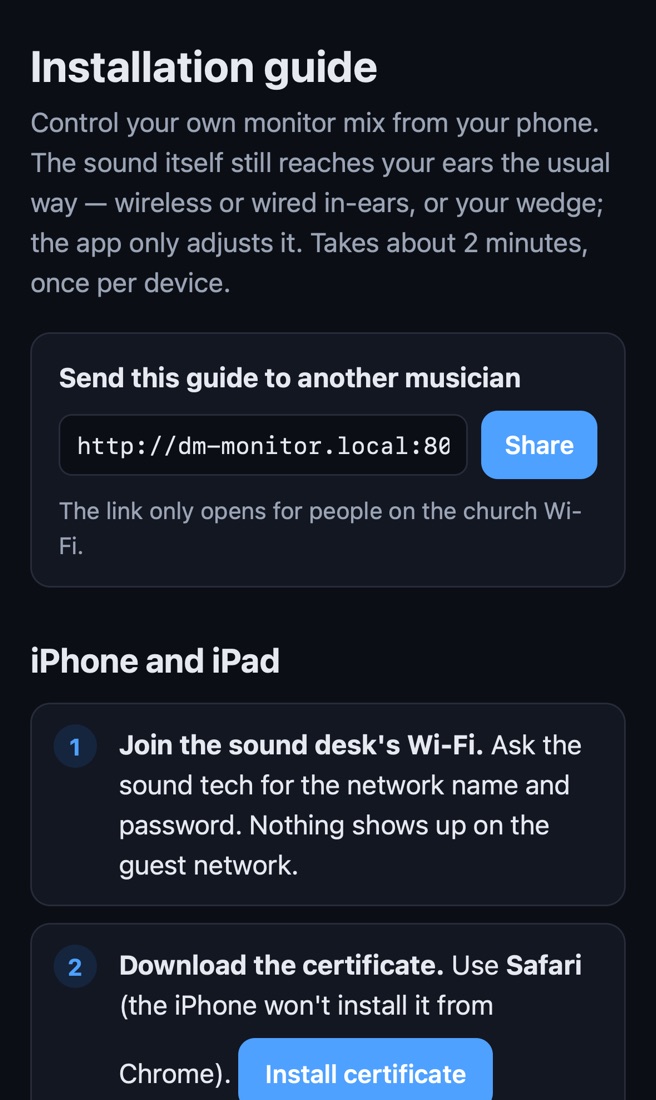
- Join the church Wi-Fi the tech tells you (the same network as the console).
- Open the link the tech shared. The first time, the page walks you through installing a certificate — it lets your phone talk securely to the church computer. It's a one-time step per phone.
- iPhone: after installing, also switch it on in Settings → General → About → Certificate Trust Settings.
- Open the app and add it to the Home Screen (Share → Add to Home Screen). From then on it opens like any app.
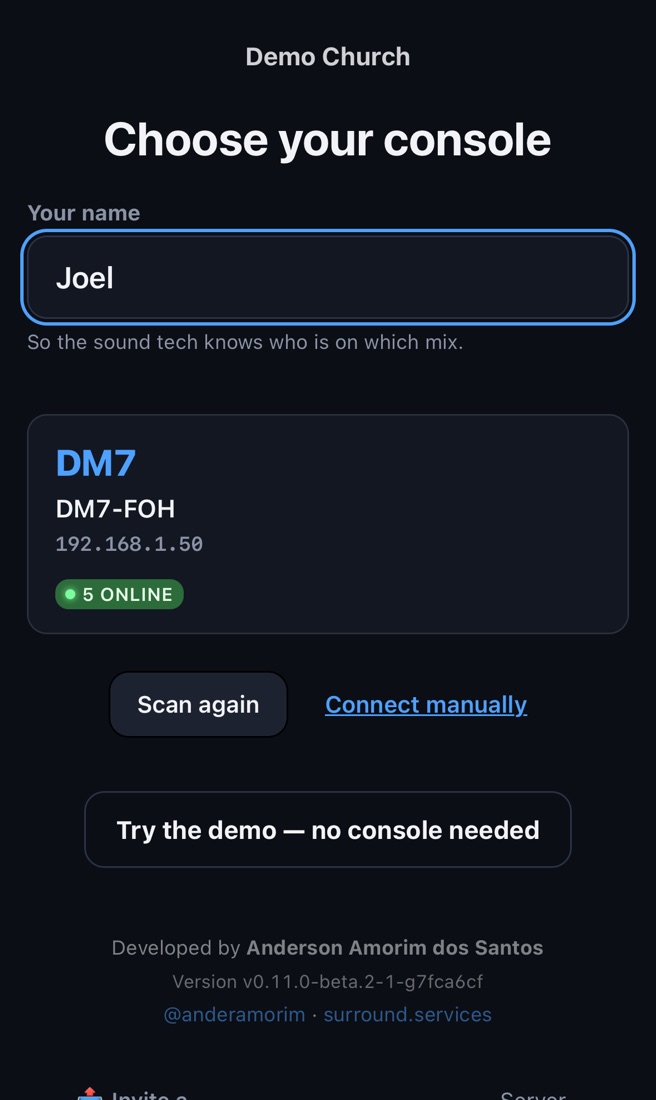
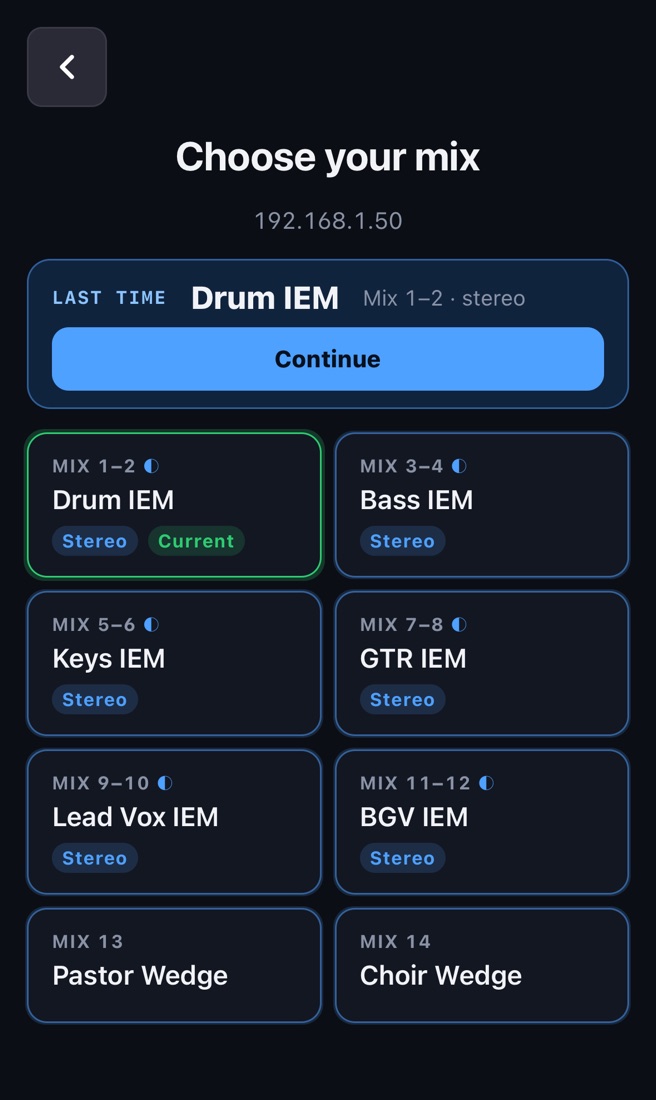
Choose your mix
- Type your name (so the tech knows who's on which mix), pick the console and then your mix. “Stereo” mixes are one item (e.g. Mix 1–2).
- Next time, Continue takes you straight back.
- ☰ → Change mix to switch.
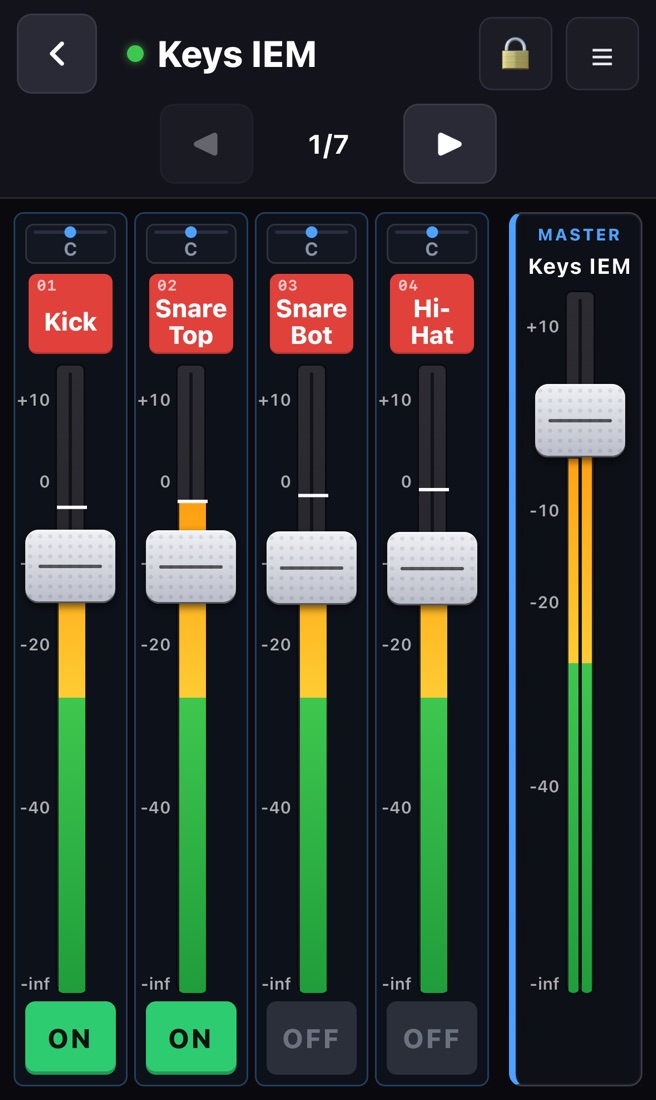
The mixer screen
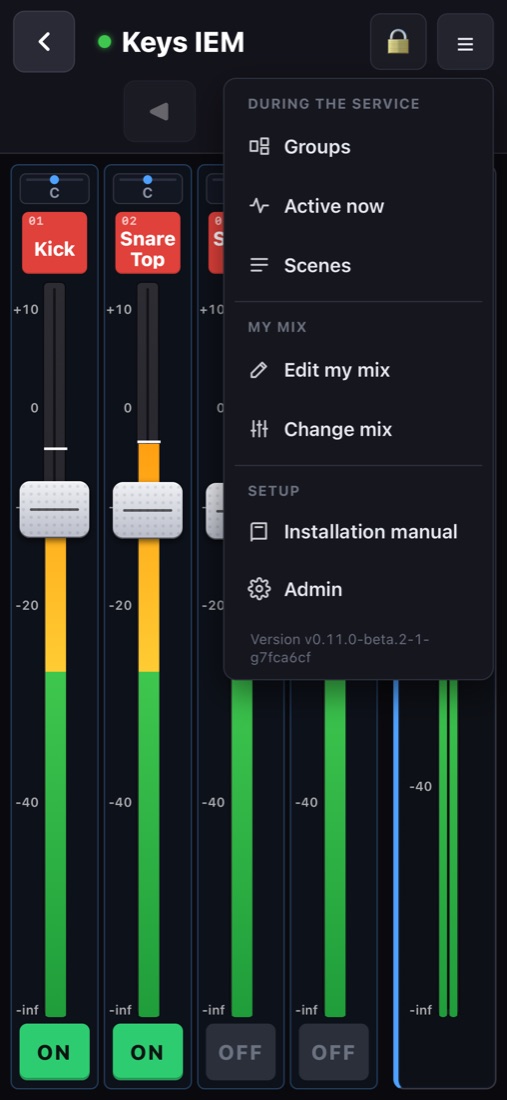
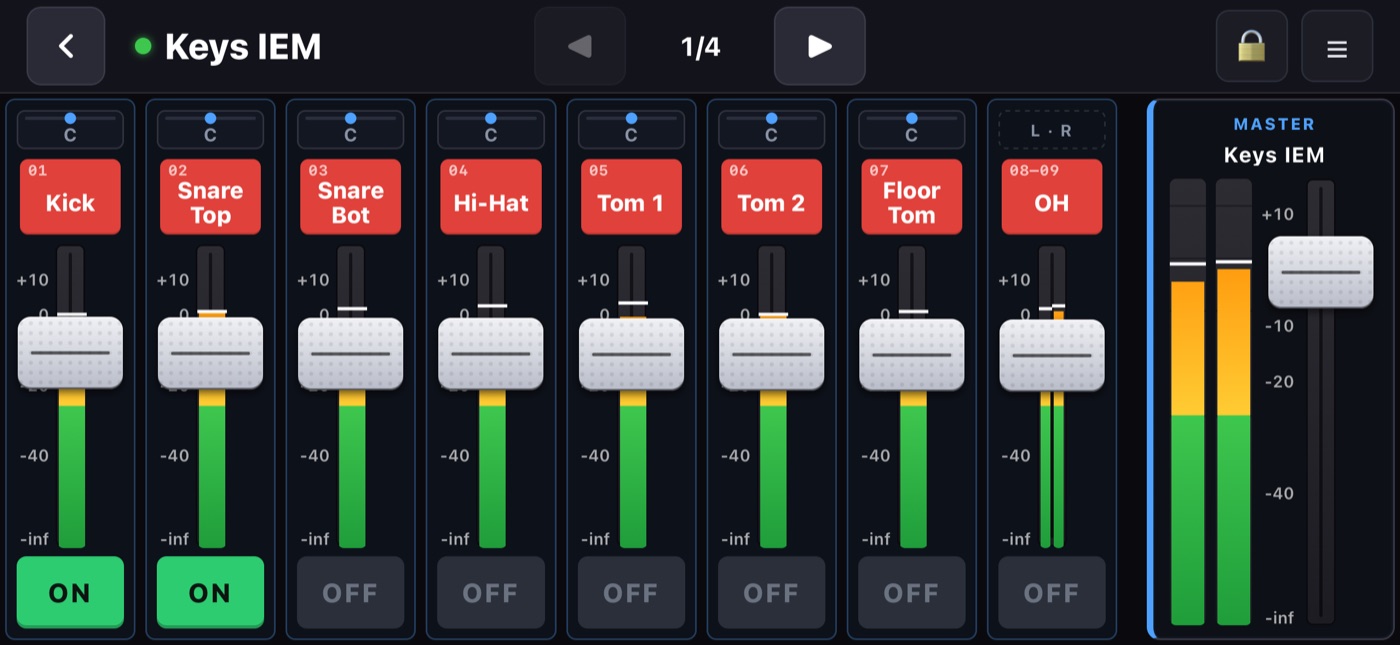
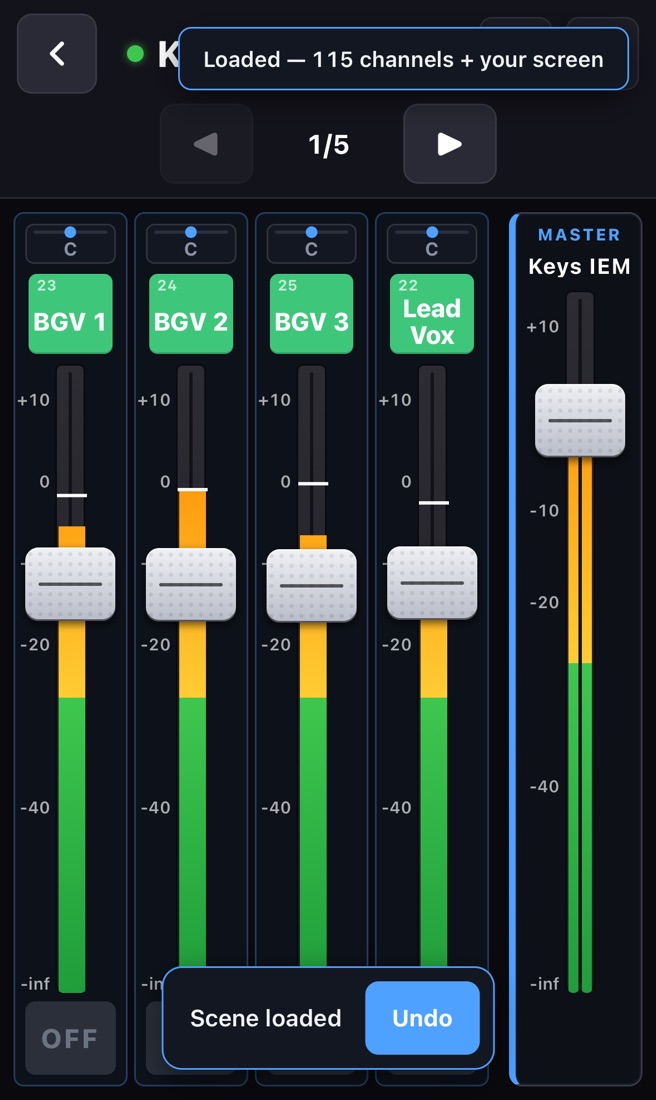
- Each channel: number, name in the console's color, a fader with the level meter inside, and ON. Your mix's MASTER is on the right.
- Grab the fader (not the track) and drag. Move your finger sideways while dragging for FINE (small steps). Very fast jumps up are limited on purpose — protects ears.
- ◀ ▶ pages through the channels. Phone upright: 4 channels per page; sideways: 8.
- Stereo mixes have pan: the button at the top of the channel. Double-tap = center.
- ☰ → Active now: shows first the channels that have signal.
- The dot next to the mix name: green = connected. If it goes red, the app reconnects by itself.
Edit my mix — your own screen
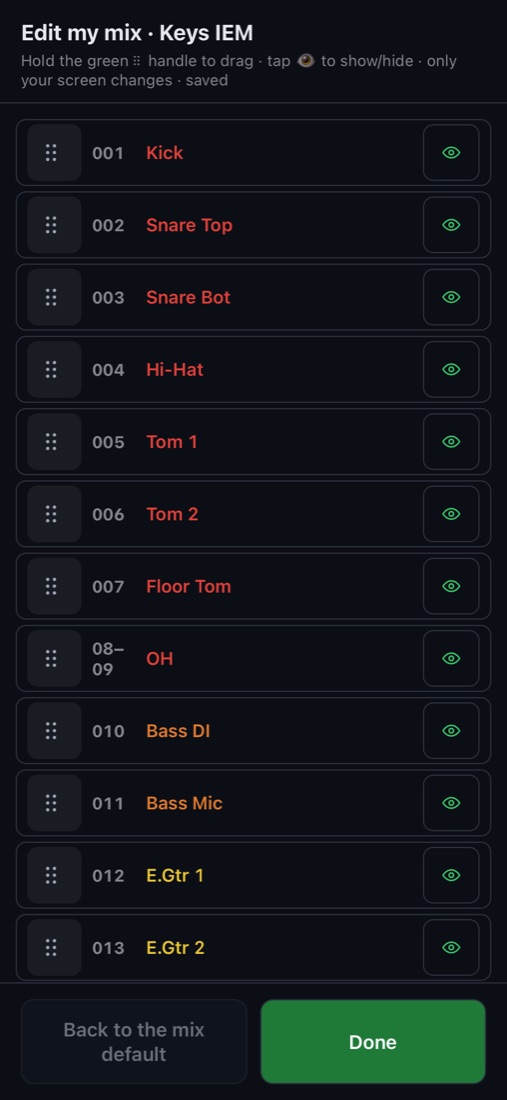
☰ → Edit my mix: drag channels into the order you like and tap to hide the ones you don't use.
- It only changes your screen — never another musician's, never the tech's setup.
- It's saved automatically and is there next time you open the app on this phone.
- Back to the mix default returns to the layout the tech prepared.
- Channels the tech locked don't appear here (see hidden vs locked).
Groups
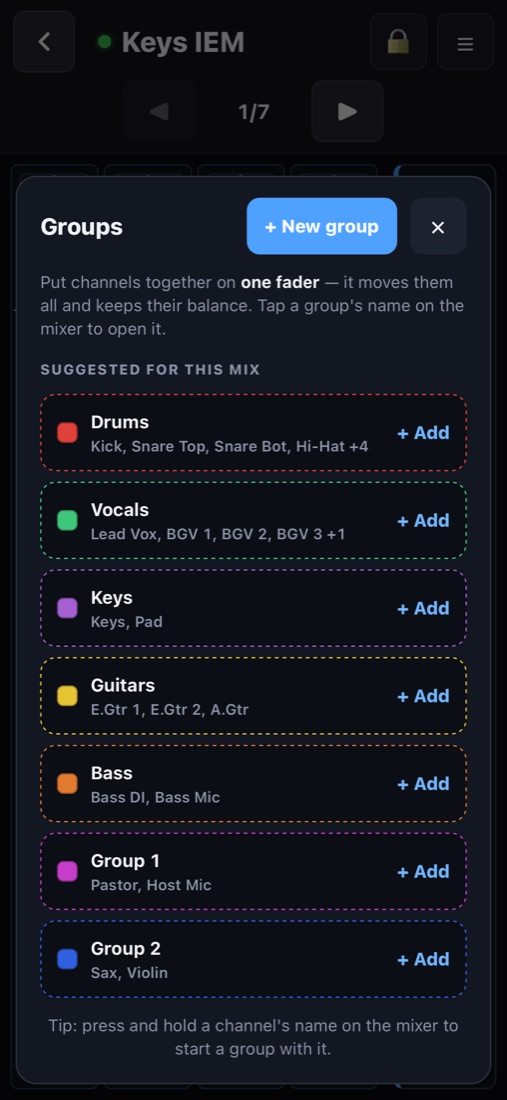
- ☰ → Groups: put channels together (e.g. Drums) and move them with one fader — the balance between them is kept.
- The group's ON remembers who was on.
- Groups belong to the mix, so they show on every phone using it.
Scenes
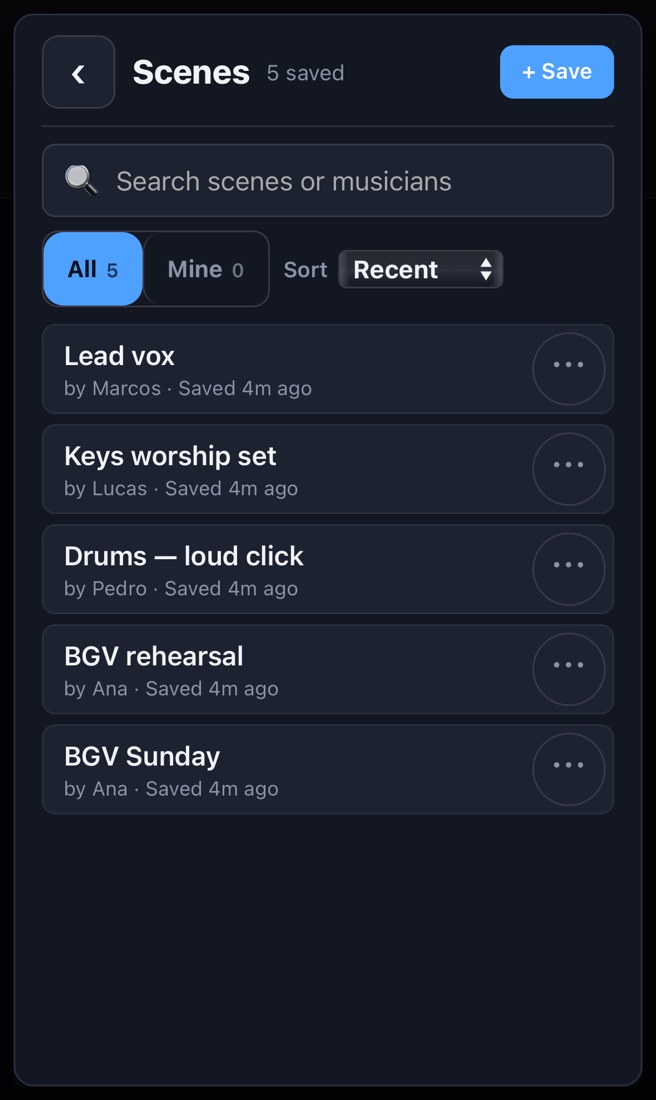
A scene is a snapshot of your whole mix: volumes, ON/OFF, pan and your screen (order + hidden channels).
- ☰ → Scenes → + Save. A password is optional (protects it from being overwritten or deleted).
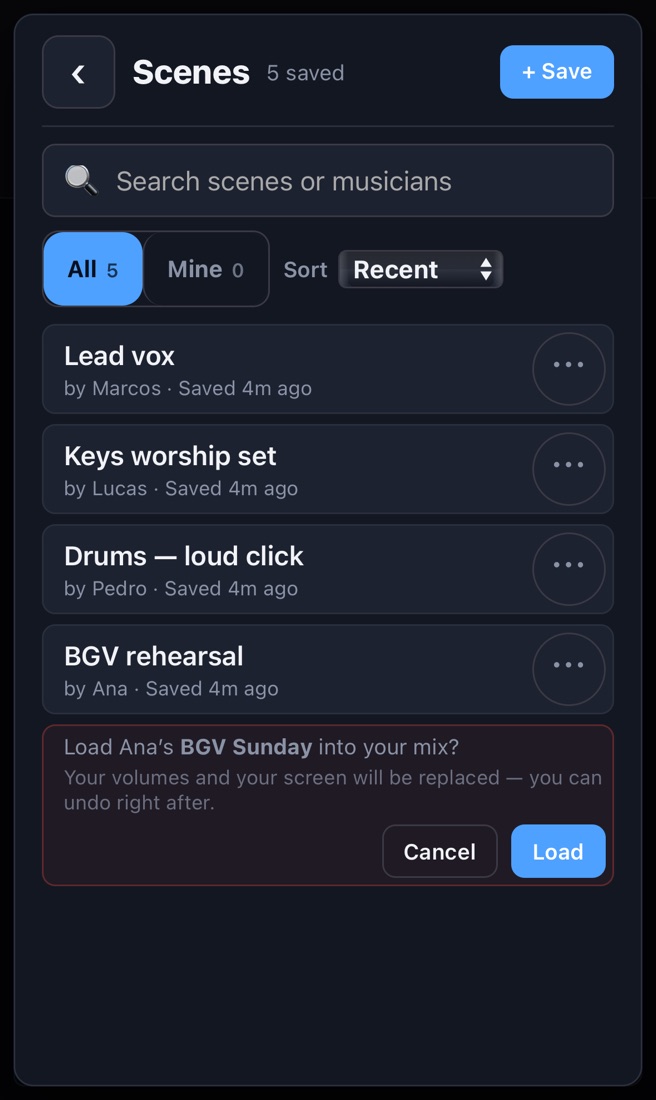
- Tap a scene to load it. You'll be asked first; right after loading, Undo appears for a few seconds.
- You can also load a colleague's scene (e.g. the vocal leader's “Sunday” base): it lands on your mix and your screen only.
- New phone? Load your scene and your mix and screen come back.
- Search by name or musician; All / Mine; ⋯ = save over it or delete.
Lock the screen
Tap the at the top during the service so nothing moves by accident. Hold it for 1 second to unlock.
Sound tech: opening the Admin
From the computer: the DM Monitor window (or tray → Open Admin). From any device on the network: https://<computer>.local:8080/admin. Sections: Overview · Mixes · Musicians · Scenes · Look & branding · Security & backup.
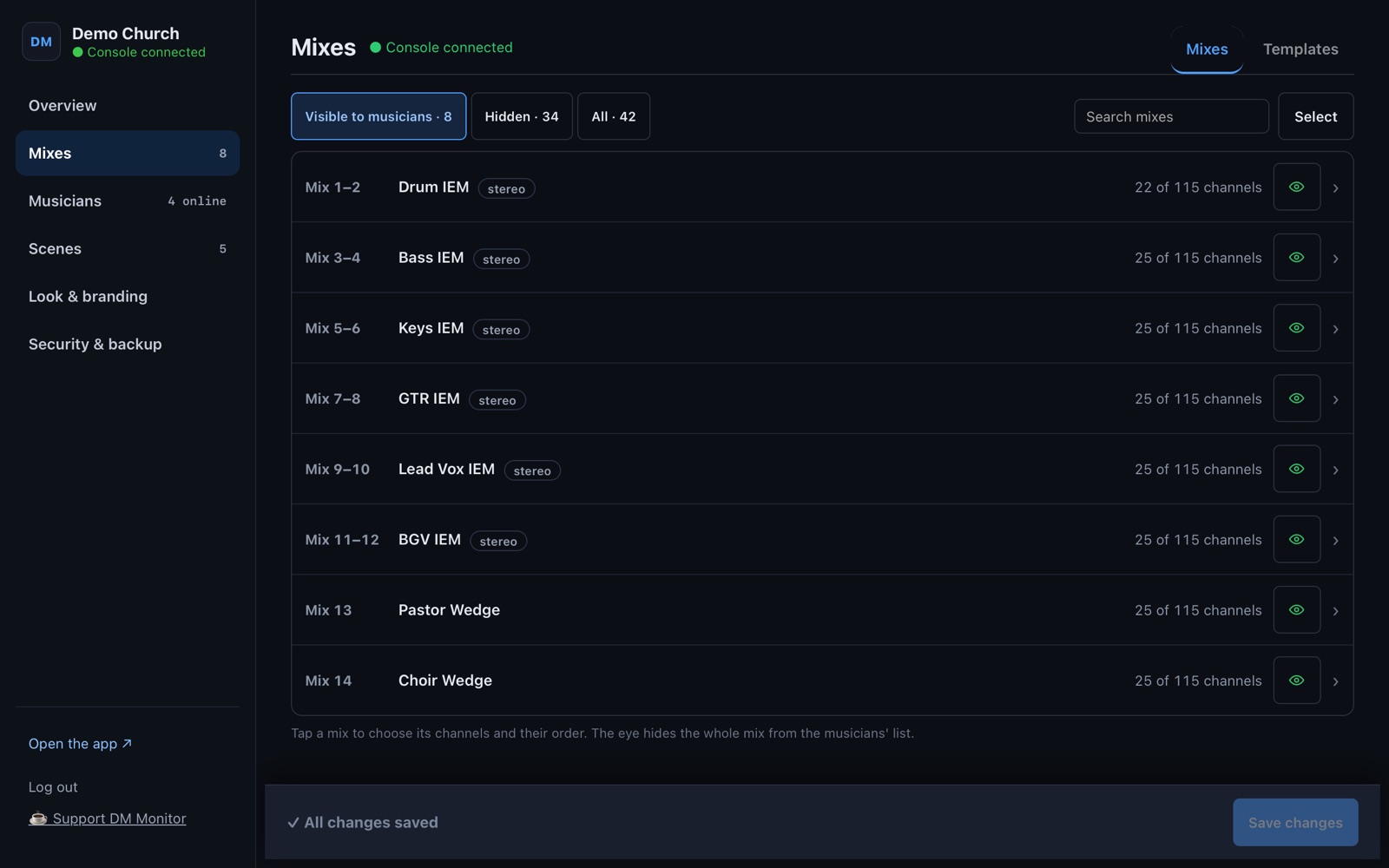
Mixes: what each musician sees
- Hide mixes nobody should pick (FX, matrix, PA…). Stereo pairs are one item and every change applies to both sides.
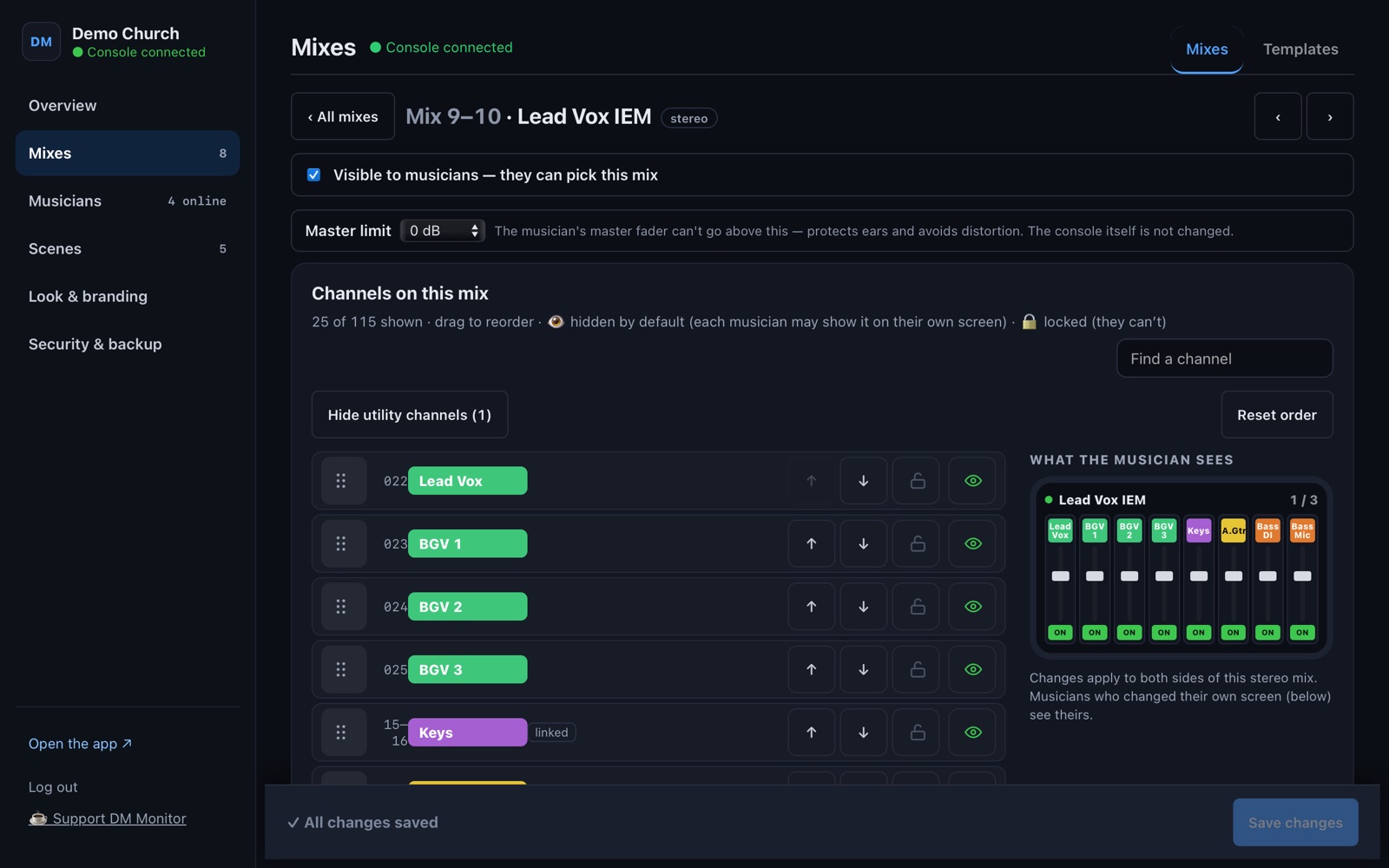
- Open a mix to set its default screen: drag to reorder, to hide. The preview on the right shows the musician's first page.
- Hide unnamed channels / Hide utility channels clean up a mix in one tap.
- Master limit: the highest level the musician can set on their master — protects ears and avoids distortion.
- Templates: save a layout and apply it to several mixes.
- Changes are a draft until you press Save changes.
Hidden vs locked channels
| Hidden | Locked | |
|---|---|---|
| Musician sees it at first | — | — |
| Musician can show it on their own screen | ✓ | — |
| Musician can move it (fader, ON, pan, scenes) | ✓ once shown | Never |
| Use it for | A tidy starting screen | Channels a musician must not touch (e.g. the drum mics on the singers' mix) |
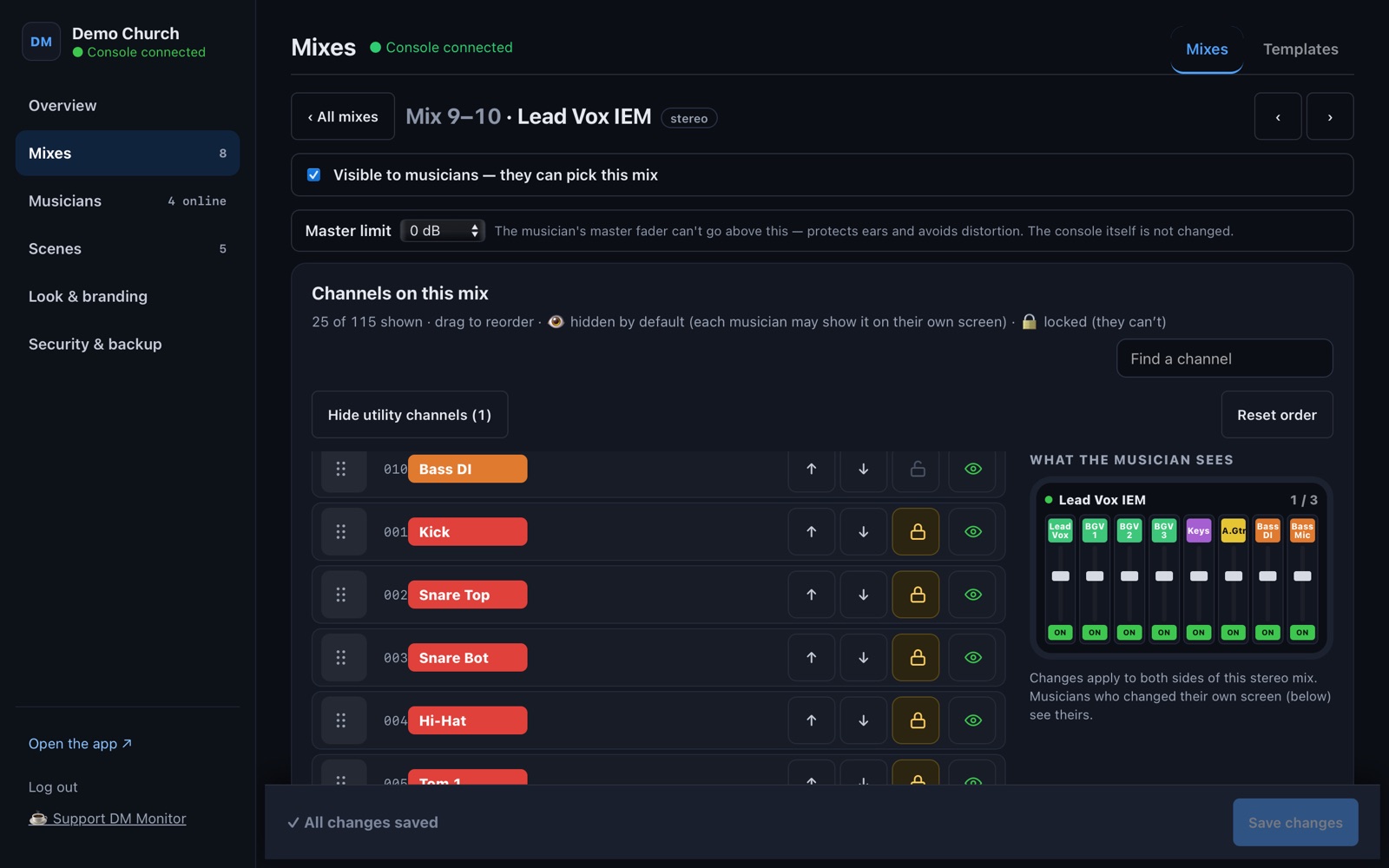
Nothing is locked by default. Lock with the padlock next to the in the mix editor; it's saved immediately and covers both sides of a stereo pair and linked L/R inputs.
Musicians and their screens
- Musicians shows who is connected and on which mix.
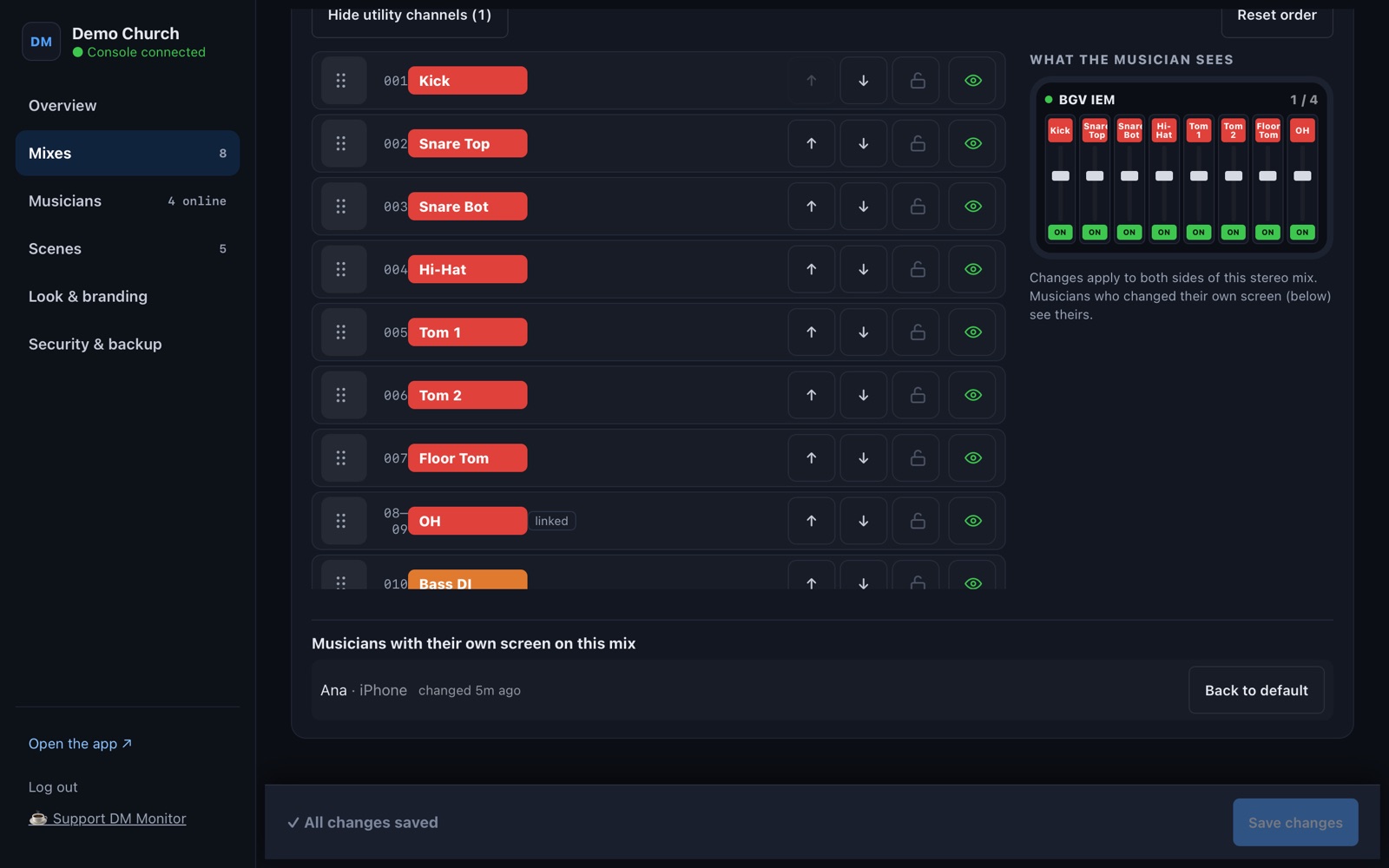
- At the bottom of each mix in Mixes: Musicians with their own screen — everyone who rearranged their screen. Back to default resets one person; Reset all resets the mix.
- Scenes: rename or delete musicians' scenes.
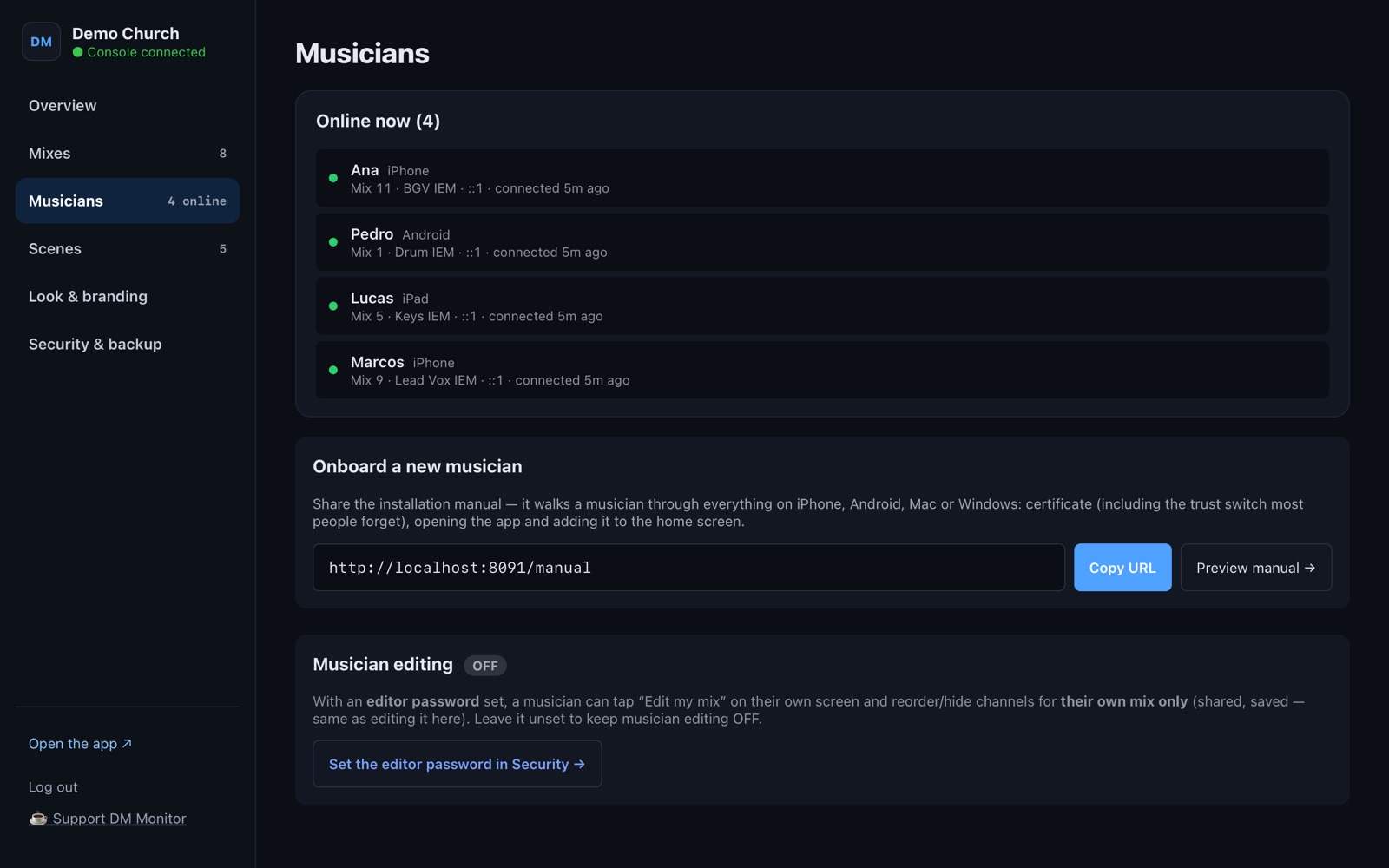
Passwords and backup
- Admin password: change it on day one.
- Console password (optional): musicians type it once to pick the console.
- Export / Import settings (mixes, templates, scenes, logo) — use it before big changes or to move to another computer. Automatic backups are kept too.
- Settings follow the console's identity, so they survive the console getting a new IP.
Network
- The computer, the console and the phones must be on the same network. Many churches have several (production, office, guest, Dante): use the one the console is on.
- Don't use the Dante network for DM Monitor.
- Computer on two networks? Admin → Overview → Discovery network: pick the console's.
- Guest Wi-Fi with “client isolation” blocks phones from reaching the computer — use a network without it.
Troubleshooting
| What you see | Do this |
|---|---|
| Console doesn't appear | Computer and console on the same network? Admin → Overview → Discovery network → Scan now. Or “Connect manually” with the console's IP. |
| Phone says “not private” / can't connect | Install the certificate (open http://<computer>.local:8081). On iPhone, switch it on in Certificate Trust Settings. |
| Phone shows an old version | Close the app completely and open again. Still old? Remove it from the Home Screen and add it again (the certificate stays). |
| I can't find my mix | The tech hid it — ask them. |
| A channel is missing | ☰ → Edit my mix → show it. Not in the list? The tech locked it. |
| The fader won't go higher | Master limit set by the tech, or the safety limit on fast jumps — drag slower. |
| Everything disconnected at once | Is the computer on and DM Monitor running (tray icon / Pi powered)? Did the computer sleep? |
Logs: Mac/Windows tray → Show logs; Pi: journalctl -u dm-monitor -n 100.
Supported consoles
Yamaha DM7, DM7 Compact, DM5, DM5 Compact, DM3; also TF, CL/QL and Rivage PM. DM Monitor reads the channel and mix count, names, colors and stereo pairs from the console. Field-tested on the DM7; other models are tested against simulations.
Glossary
- Mix (bus) — one musician's monitor mix (in-ears or wedge).
- Send — how much of a channel goes into a mix. Your faders are sends.
- IEM — in-ear monitor.
- −∞ — fader all the way down (silent).
- Linked / stereo — L and R inputs (or two mixes) that move together.